A monitor for coding is judged differently from one for gaming or film. You are reading small text for hours, so sharpness and comfortable height matter far more than refresh rate.
Height comes first#
The top of the screen should be at roughly eye level, about an arm’s length away. Too low and you look down all day, which is the most common cause of neck ache among people who work at computers.
This means an adjustable stand matters more than most specifications. Check for height adjustment, or that it supports a VESA mount so you can add an arm. A perfect panel on a fixed low stand is worse than a modest panel at the right height.
Laptop users: a laptop screen is always too low. A stand plus an external keyboard is the single biggest comfort improvement available.
Pixel density, not resolution#
Resolution alone tells you nothing without the size. What matters is how many pixels per inch, because that decides how crisp text looks.
| Size | Works well at | Notes |
|---|---|---|
| 24 inch | 1080p or 1440p | 1440p is noticeably sharper for text |
| 27 inch | 1440p or 4K | 1080p at 27 inches looks soft |
| 32 inch | 4K | 1440p starts looking coarse at this size |
The practical rule: 1080p is fine at 24 inches and disappointing at 27. If you are choosing between a bigger low-resolution screen and a smaller sharp one, take the sharp one — you read text all day.
Scaling on 4K#
A 27-inch 4K monitor at 100% scaling gives you tiny text. Most people run it at 150%, which gives very sharp text at a comfortable size but the same usable space as 1440p. That is a legitimate choice — you are buying clarity, not area.
Windows scaling has improved a great deal but can still be awkward with older applications. macOS handles it more smoothly.
Panel type#
- IPS — accurate colour, wide viewing angles. The usual choice for work.
- VA — deeper blacks, sometimes slower response. Fine for coding.
- TN — fast and cheap, with narrower viewing angles and weaker colour. Rarely the right pick for text work.
Also consider the coating: matte finishes scatter reflections and are easier in a bright room; glossy looks punchier but shows every light source behind you.
One screen or two?#
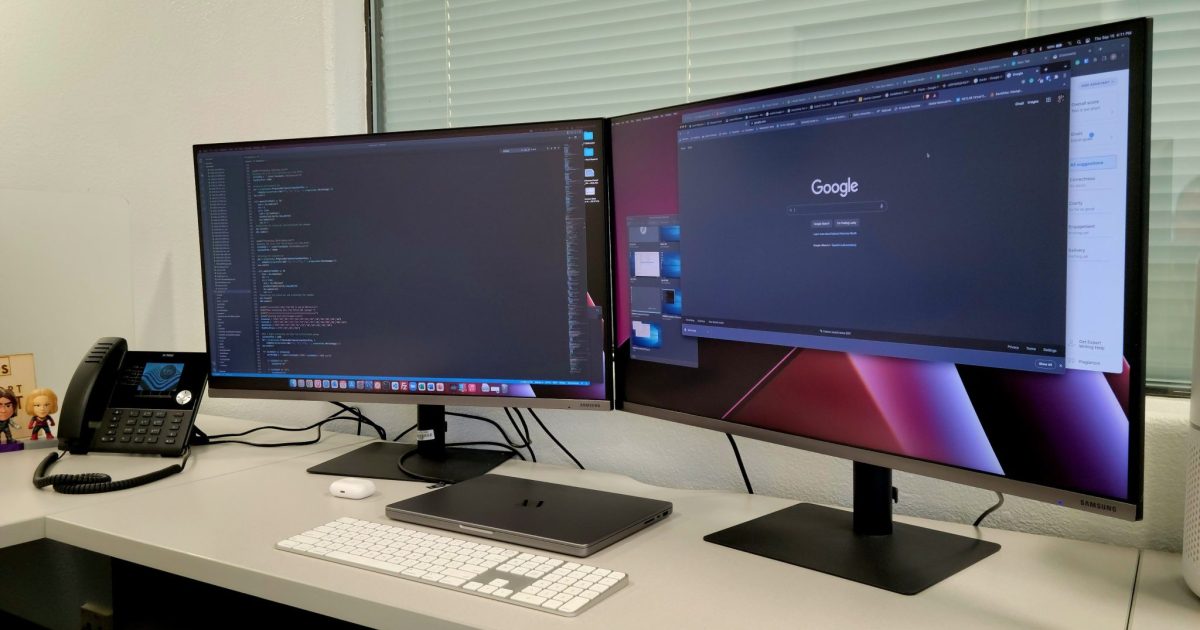
Two screens genuinely help when you need code and something else visible at once — documentation, a browser preview, a terminal.
Common arrangements:
- Two 24-inch 1440p — flexible and affordable
- One 27-inch 4K — one sharp screen, split into panes
- One ultrawide — one physical screen behaving like two, without a bezel down the middle
- Main screen plus a vertical secondary — a rotated screen is excellent for long files and logs
Start with one good screen. Add a second when you notice yourself constantly switching windows.
What is worth checking#
- Height adjustment or VESA mounting — the most important item on this list
- The ports you actually have — HDMI, DisplayPort, or USB-C if you want one cable to your laptop
- USB-C power delivery — charges a laptop through the same cable that carries video, which genuinely tidies a desk
- Flicker-free and a low-blue-light mode — commonly cited for eye comfort during long sessions
Eye comfort#
Beyond the hardware:
- Match screen brightness roughly to the room — a bright screen in a dark room is tiring
- Avoid a bright window directly behind or in front of the screen
- Increase your editor’s font size. Small text is not a badge of honour.
- Look at something distant regularly. It costs nothing.
Questions people ask#
Is an ultrawide better than two monitors?
Different trade-offs. Ultrawide gives you no bezel in the middle and needs window-management software to split usefully. Two monitors are cheaper and let you position each one independently.
Is a curved screen useful?
On very wide screens the curve keeps the edges a similar distance from your eyes, which helps. On a 24 or 27-inch screen it makes little practical difference.
Does colour accuracy matter for coding?
Not much for code itself. It matters if you also do design or front-end work where colours need to look right.
Can I just use my TV?
Usually a poor experience. TVs are built for viewing from a distance, and text sharpness and input lag are typically worse up close.
Where to go next#
- Laptops for programming: what matters
- Plan your desk layout with our free tool
- Monitors — the comparison checklist
- Developer desk setup — position before equipment